


Personalised learning aid with Google Gemini
As a multimodal AI assistant, Google Gemini helps users work productively and bring creative ideas to life. Whether it’s images, videos, text, audio or code – Gemini can process a wide variety of inputs simultaneously and use them to generate a diverse range of content. You can engage with the AI assistant in a text- and voice-based chat, in a dialogue about your content, use the AI as a learning aid or do research. You can tailor your experience with Gemini to suit your individual needs using Gems and other tools.
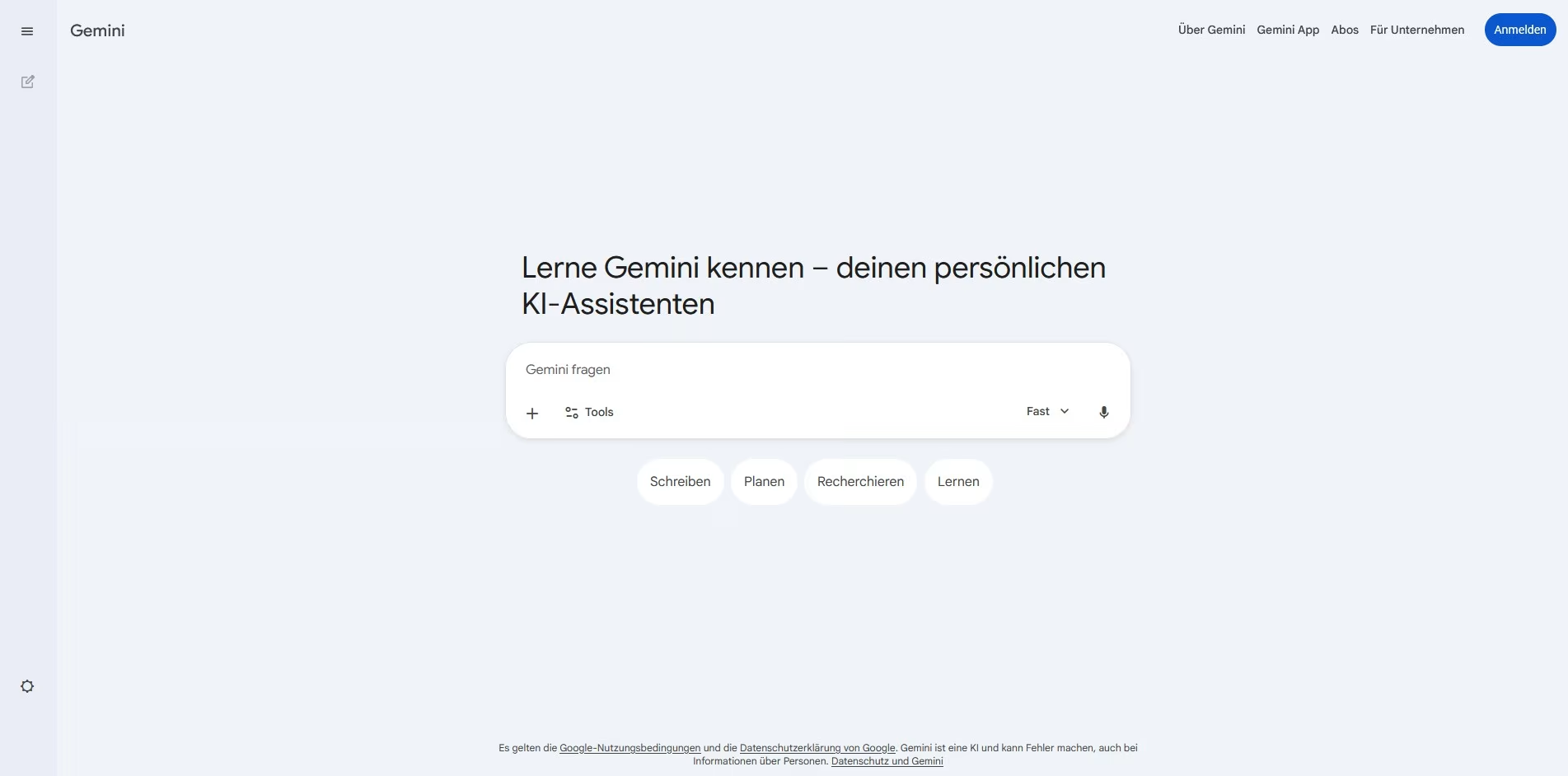
In a nutshell: What is Google Gemini?
FACTS
Link: http://gemini.google.com/
Login: with a Google account
Licence: A basic version is available for free. There is no licence at TH Köln.
TECHNICAL REQUIREMENTS
– Accessible via web browser or via app for iOS and Android mobile devices
– Stable internet connection
The multimodal AI assistant Google Gemini is able to process a wide variety of input types, such as text, images, videos, audio and code, simultaneously. Based on these, Gemini can generate new content such as images, music, webpages, infographics and apps. Furthermore, users can utilise the AI application as a learning aid or as a research assistant for Deep Research.
There are various ways in which Gemini can be tailored to your needs. By selecting the desired response style in the chat and setting individual instructions for the AI, users can optimise their workflow. Furthermore, so-called ‘Gems’ can be used to create customised AI versions of Gemini that are pre-configured for recurring tasks.
Data Protection & Accessibility
Whilst Google uses chat data from private users by default to improve its models, data in business and education environments is not used for AI training. Private users have the option to disable this feature. You can find more information on the privacy policy here.
In terms of accessibility, Gemini supports screen readers and precise voice control. In addition, the Gemini Live feature enables users to interact directly with the AI via voice, live camera feed or screen sharing.
As a general rule: Do not provide AI applications with any sensitive data!
Range of Features
- Understanding and analysing text, audio, image, code and video content
- File upload (PDF; ZIP; spreadsheets; text, image, video and audio files; code)
- Text and voice input
- Editable prompts and a searchable, configurable chat
- Generating images, music, web pages, infographics and apps
- Research assistant and learning aid
- Custom AI versions: Gems
Uses
Step by Step
You can access the service via your browser on the Google Gemini website or via the app on mobile devices. You can download the app for iOS and Android here. Then you’ll need to sign in with a Google account or create one.
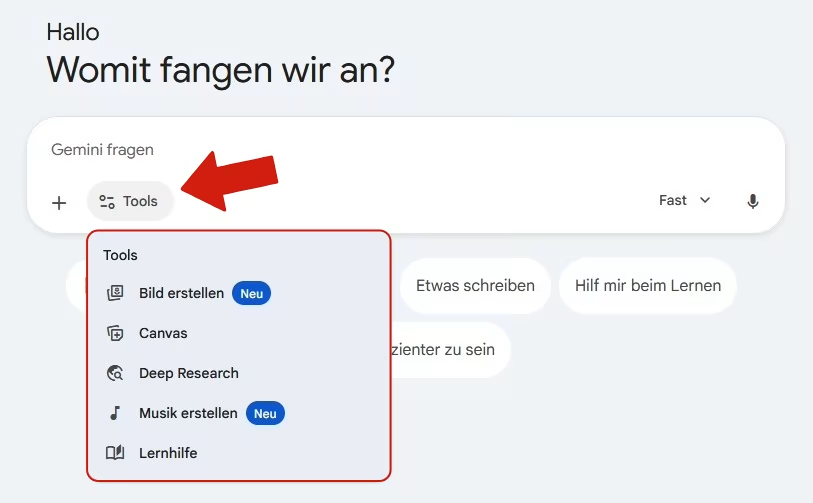
In addition to the chat function, users have access to a range of other tools. Firstly, they can use Gemini to generate images, music and – via the ‘Canvas’ function – websites, infographics and apps. Secondly, users can utilise the ‘Learning Aid’ function or carry out Deep Research using the AI application.
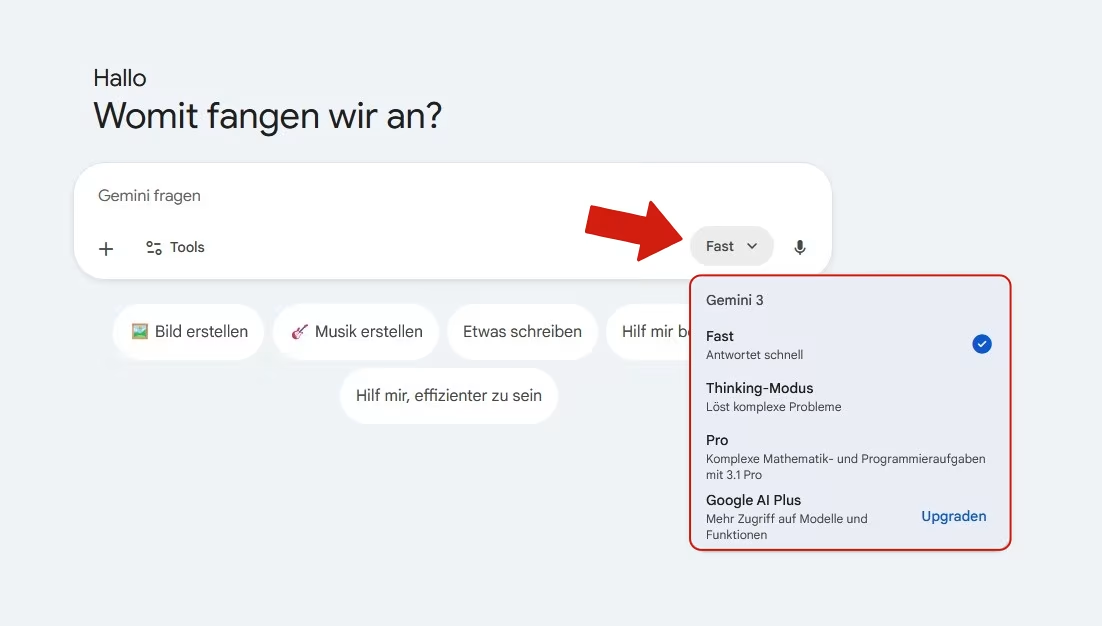
To customise the AI to your needs, the basic version allows you to choose between three response modes:
- ‘Fast’ for quick answers
- ‘Thinking mode’ for solving complex problems
- ‘Pro’ for complex maths and programming tasks
Token usage varies depending on the mode selected. For example, ‘Fast’ offers a larger quota of text and content generation than ‘Pro’ mode.
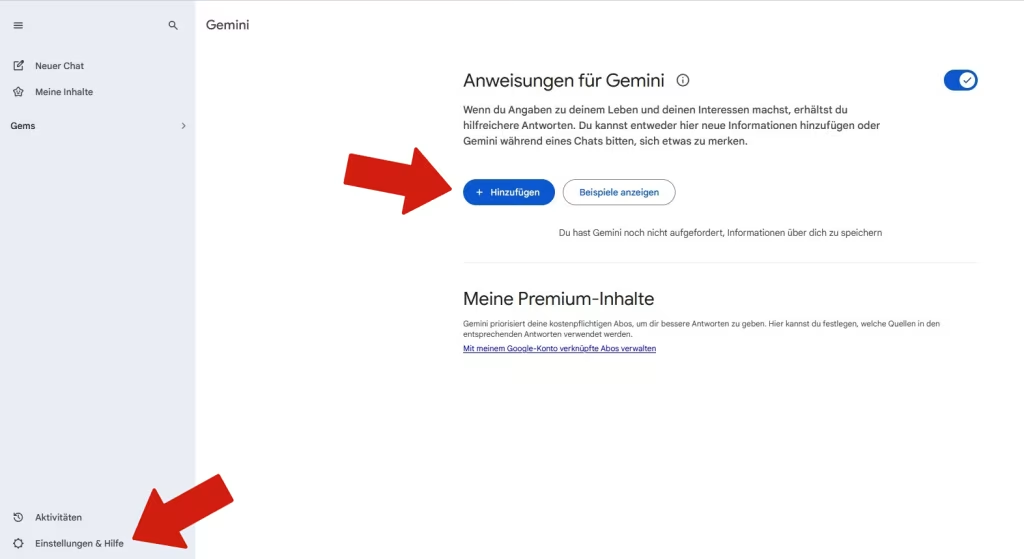
You can also save custom instructions for Gemini in the settings menu, which the AI will follow when generating responses.
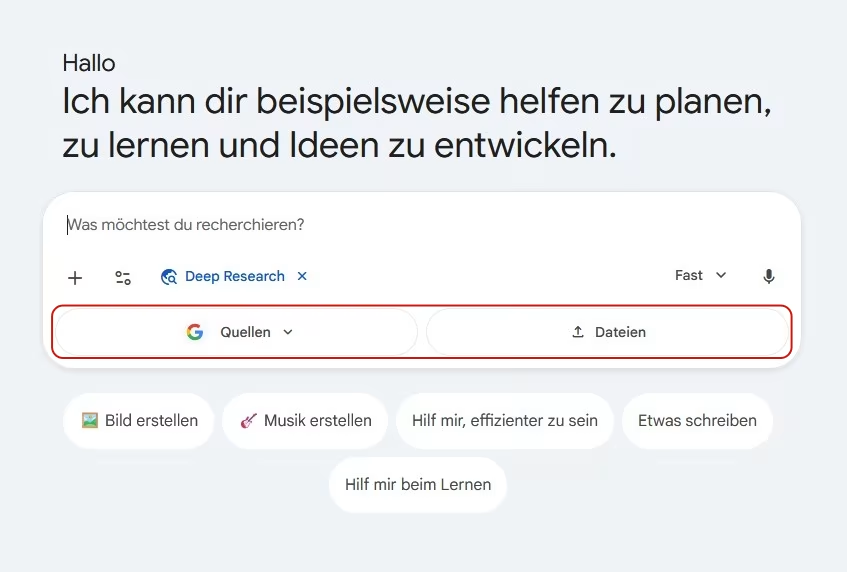
Gemini can be used as a research assistant via the ‘Deep Research’ tool. You can select various Google services as sources or upload your own content. Gemini will then create a research plan based on your enquiry. You can either edit this to suit your requirements or start the research straight away. While it’s searching, Gemini shows you the AI’s process as well as the sources it has searched. Based on your sources and the research, you have the option to generate content such as a quiz or learning material.
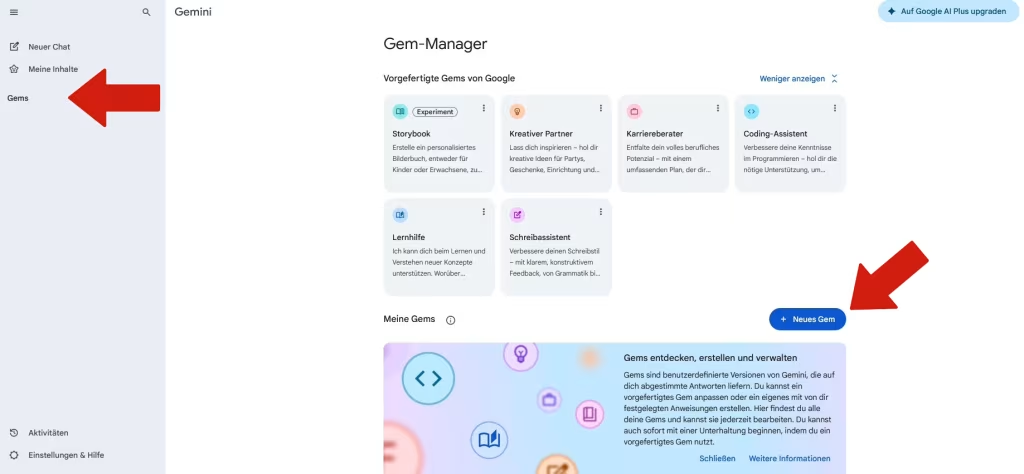
In the ‘Gem Manager’ in the sidebar, users can either choose from pre-made Gems or create their own, tailored to their individual requirements. To create your own Gems, use the ‘+ New Gem’ function.
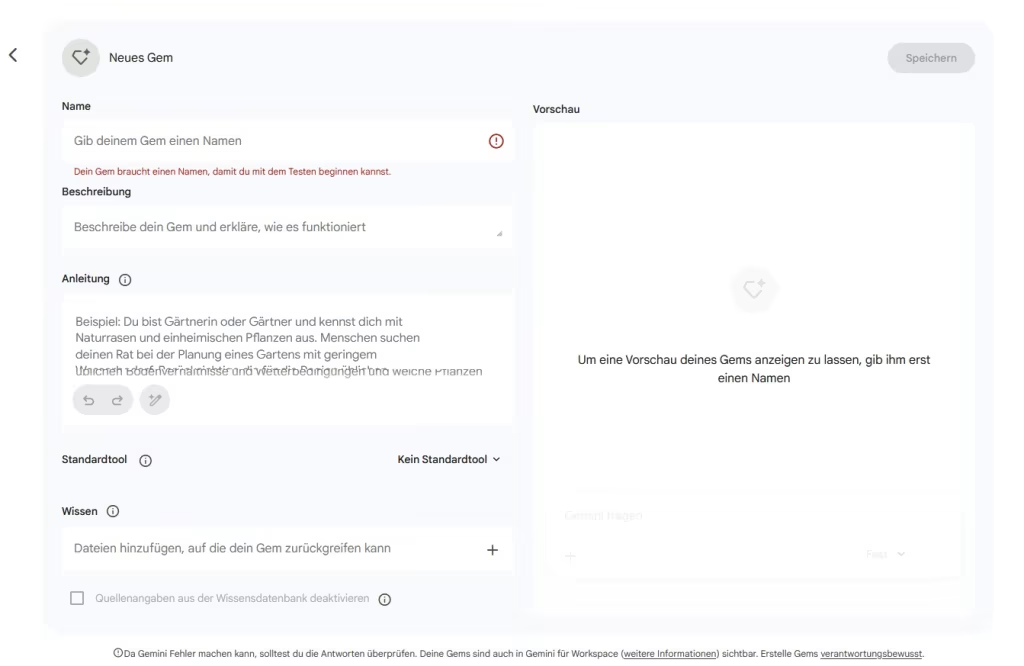
Then you enter the name, a description and instructions for your Gem. The instructions should cover the main objectives and functions, as well as the desired response style. When you select the wand icon, Gemini will write the instructions for you. You can upload your own files to serve as the knowledge base for your Gem. Finally, it is possible to see a preview of the Gem and then to continue editing or save it.
To use it, select the desired Gem and start a chat.
Practical tips
Gemini as a teaching and learning aid! Gemini’s ‘Learning Aid’ and ‘Deep Research’ features can support students in their learning process and self-study. Furthermore, these AI tools can be used to create teaching and learning materials.
Integration with other apps! Use Gemini to access NotebookLM, as well as Google Search, Gmail, Google Drive and Google Calendar, and incorporate these into your query to the chatbot.
Chat with Gemini Live! Share your mobile device’s camera or screen and chat with Gemini in real time about what it can see there. Please note that, by default, data from private users is used to train models.
The basic version is free to use. The paid versions offer extended access and additional features.
Any questions?
Feel free to contact us by mail to lehrpfade@th-koeln.de!
Links & literature
Header image: © Google Gemini, Screenshot Zentrum für Lehrentwicklung (ZLE)