


Adobe Podcast
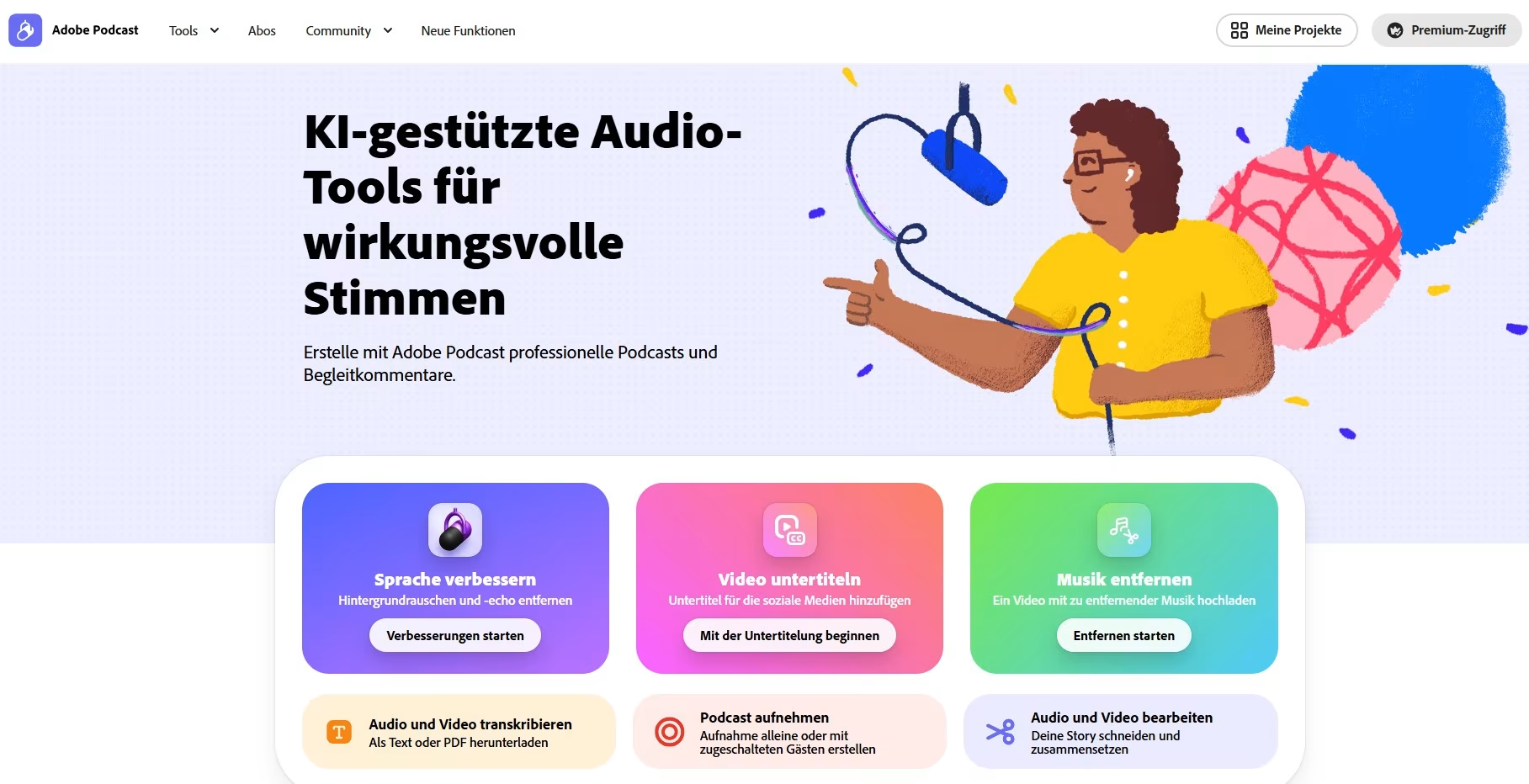
Adobe Podcast is an AI-powered web platform for professional audio recording and editing. It is suitable for both beginners and professionals in this field. At the tool’s core is the ‘Studio’, where users can record professional podcasts, directly in their browser – either on their own or with guests joining remotely. With Adobe Podcast, audio tracks from recordings can be edited as easily as a text document. In addition, various AI-powered audio tools are available, including those for generating subtitles, improving audio quality, integrating music and much more.
In a nutshell: What is Adobe Podcast?
FACTS
Link: podcast.adobe.com/en
Login: with email address, Login with campusID
Licence: Creative Cloud licence at TH Köln
TECHNICAL REQUIREMENTS
– Stable internet connection
– Adobe Podcast ‘Studio’ (beta version), best used in the Google Chrome browser
– Additional features are supported by a wide range of browsers on desktop and mobile devices
The AI-powered web platform Adobe Podcast allows users to create and edit professional audio recordings. To do this, users can upload their own files or record podcasts directly via the ‘Studio’ inside the browser – on their own or together with guests joining remotely. The subsequent editing process is easy to use, whether you are a professional or new to audio editing; the text-based editor allows for quick and intuitive editing of audio recordings directly within the transcript.
In addition, a wide range of AI-powered audio tools is available. The platform offers automatic transcription and subtitling of audio recordings, as well as various functions for improving audio quality. Among other things, this makes it possible to reduce background noise and enhance speech clarity. Furthermore, users can remove music from their projects or add their own or royalty-free music as a backing track.
Data Protection & Accessibility
Unfortunately, Adobe Podcast’s data protection policy is ambiguous. Therefore, please do not publish any sensitive data via the service!
You can find more information about the data protection policy here.
Range of Features
- Record a podcast (alone or with guests joining remotely)
- Text-based editing
- AI-powered audio tools (including improving audio quality, transcription, subtitling, and adding or removing music)
- File upload (audio or video files, group recordings)
- Export projects as audio/video files, transcripts (txt/PDF), individual audio tracks, video files with subtitles, or an audiogram
Uses
Step by Step
Adobe Podcast is accessible via a web browser on the Adobe Podcast website. Please note: The ‘Studio’ tool is currently a beta version and is best used in the Google Chrome browser (desktop). The AI-powered audio tools, on the other hand, are supported across a wide range of browsers on both desktop and mobile devices.
Adobe Podcast is included in the Adobe Creative Cloud Premium subscription and is therefore available to staff at TH Köln. You can log in using your campusID.
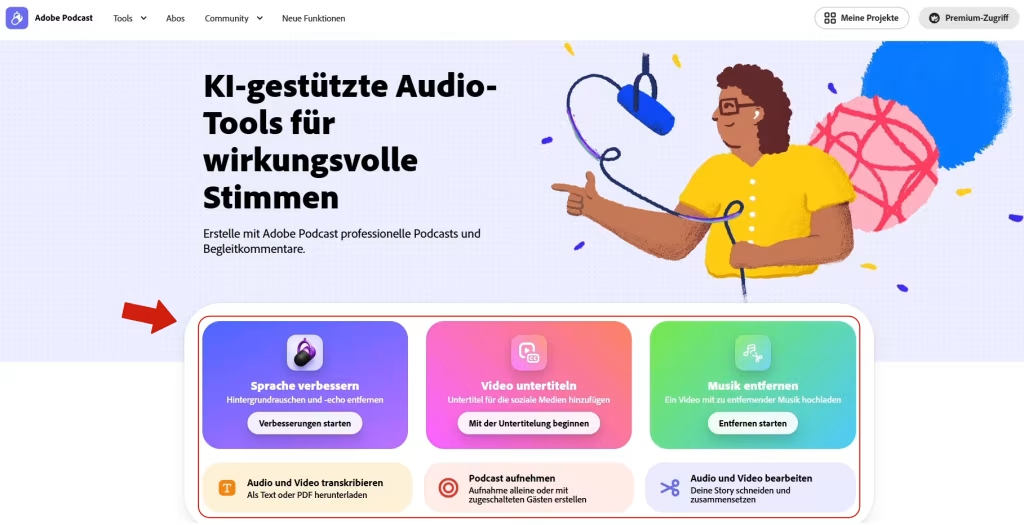
Adobe Podcast offers a wide range of features. On the Adobe Podcast homepage, you can access the following AI-powered audio tools directly:
- ‘Enhance speech’
- ‘Add subtitles to video’
- ‘Remove music’
- ‘Transcribe audio and video’
- ‘Record a podcast’
- ‘Edit audio and video’
These tools are ideal for quickly optimising your audio recordings.
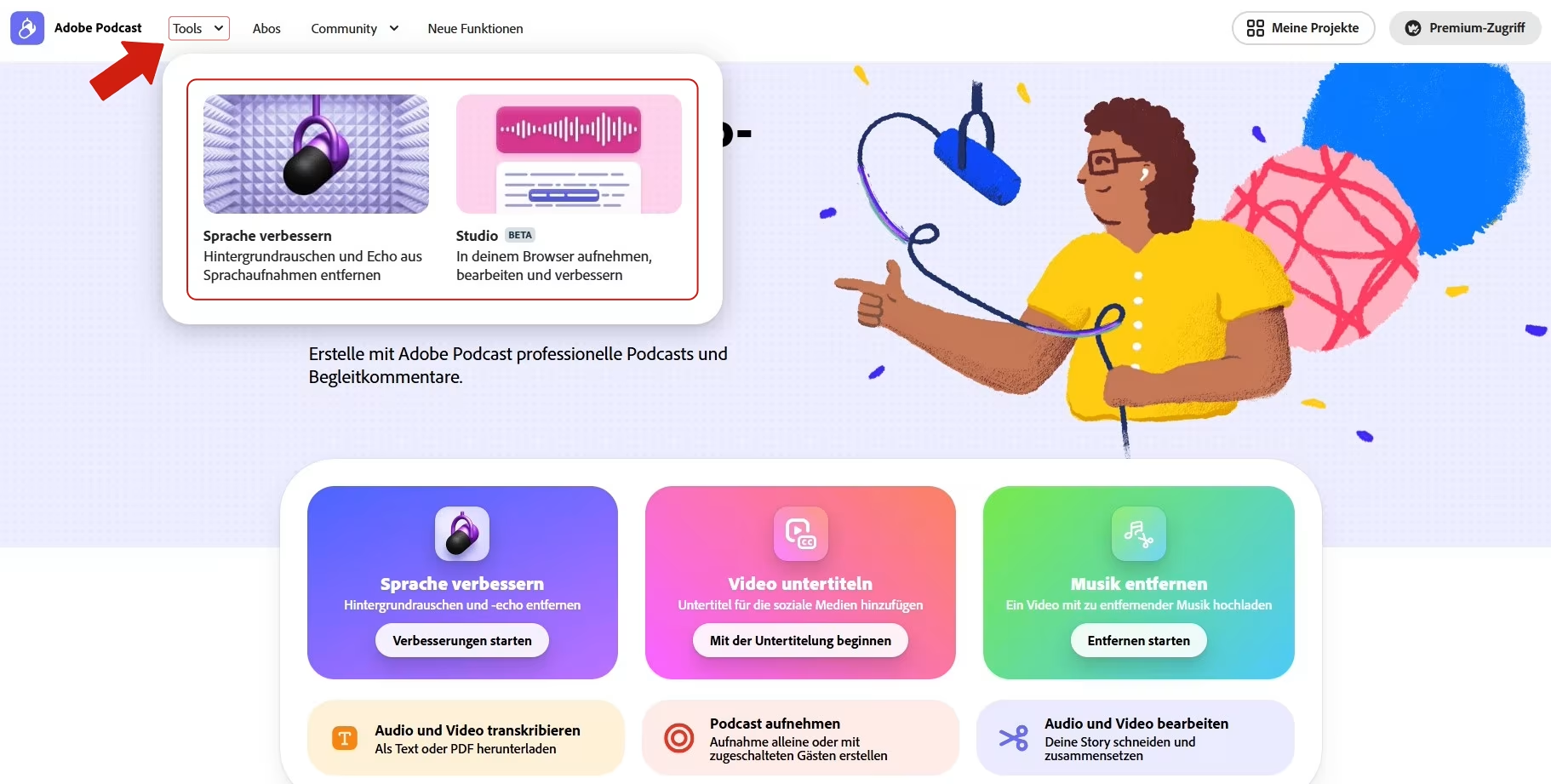
In the ‘Tools’ section, you can either access the ‘Studio’ – the complete production environment for audio recordings – or find the ‘Improve Speech’ function again. This allows you to adjust the audio settings for your recordings – such as speech output, music and background noise – using sliders to improve the audio quality.
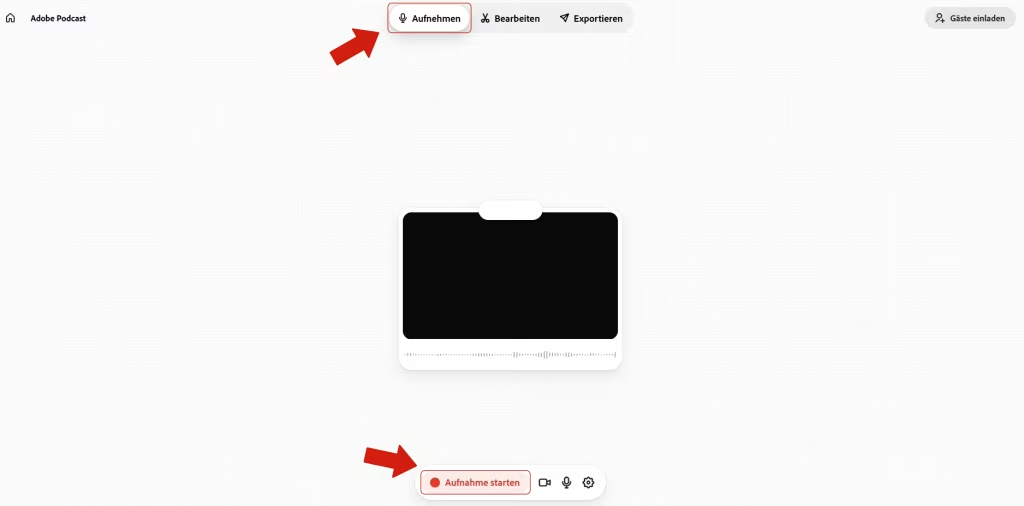
To do this, select the ‘Record’ function in the ‘Studio’. You will then need to grant access to your microphone and camera. To begin, press ‘Start recording’. When you are done recording, stop the recording by pressing the ‘Stop recording’ button.
If you wish to record with guests, you can use the ‘Invite guests’ function in the top right-hand corner to invite other people to join the recording remotely via their email address. The guests’ audio tracks appear automatically separated from one another in ‘Studio’, which makes the editing process easier.
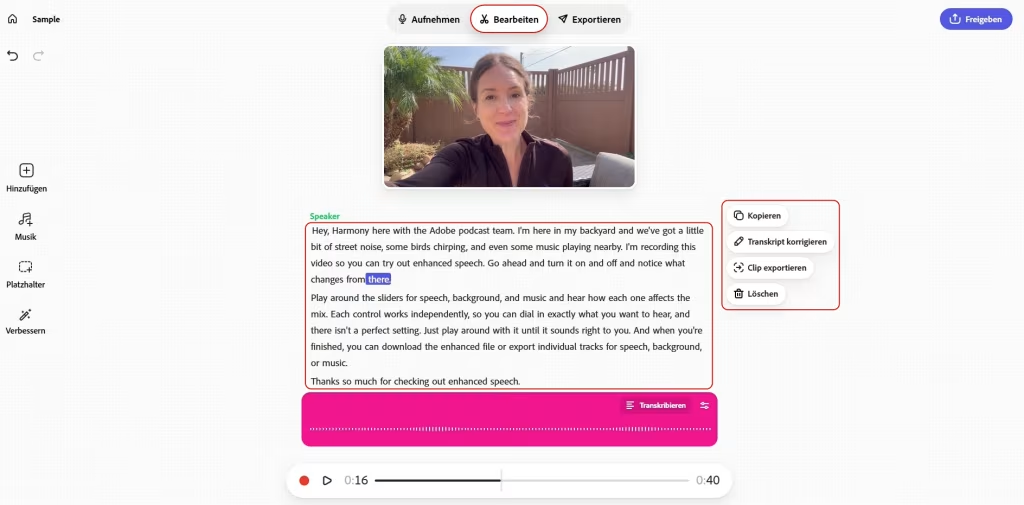
‘Studio’ is the extensive production environment. Here, you can record podcasts or upload and edit your own audio or video files. Users can edit their audio tracks quickly and easily, thanks to text-based editing. Just as in a text document, blocks of text can be cut, copied and pasted – without having to edit the waveform at all.
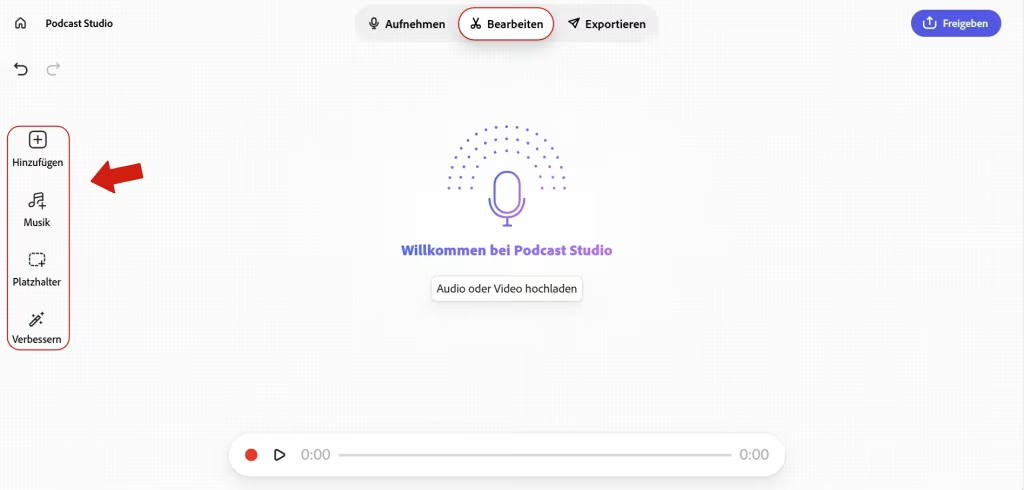
In addition, you can incorporate intros, outros or music into your project – either by uploading your own or by using royalty-free music. You can also use sound enhancement features and insert placeholders into your transcript, for example to add a host’s commentary at that point at a later stage.
Practical tips
Use a keyword! If you slip up during recording and need to re-record a section, say your keyword and start again. While editing, you can then search for this keyword in the transcript and jump straight to the section with the error.
Export to any format! In Adobe Podcast Studio, you’ll find a wide range of export options for your projects. Among other things, you can export the audio and video files, the transcript as a text file, individual audio tracks, an audiogram and the video with subtitles.
Accessible lecture notes! Adobe Podcast Studio generates automatic transcripts of the audio recordings. Teachers can export these and make them available as accessible lecture notes or learning materials.
Record high-quality interviews and guest lectures! The remote function enables you to easily record high-quality interviews – for example, for empirical research or guest lectures.
The basic version is free to use. With the paid premium subscription, you get an increased usage limit and additional features.
Any questions?
Feel free to contact us by mail to lehrpfade@th-koeln.de!
Links & literature
Header Image: © Adobe Podcast, screenshot from the Zentrum für Lehrentwicklung (ZLE)